How do I manage expenses and receipts?
-
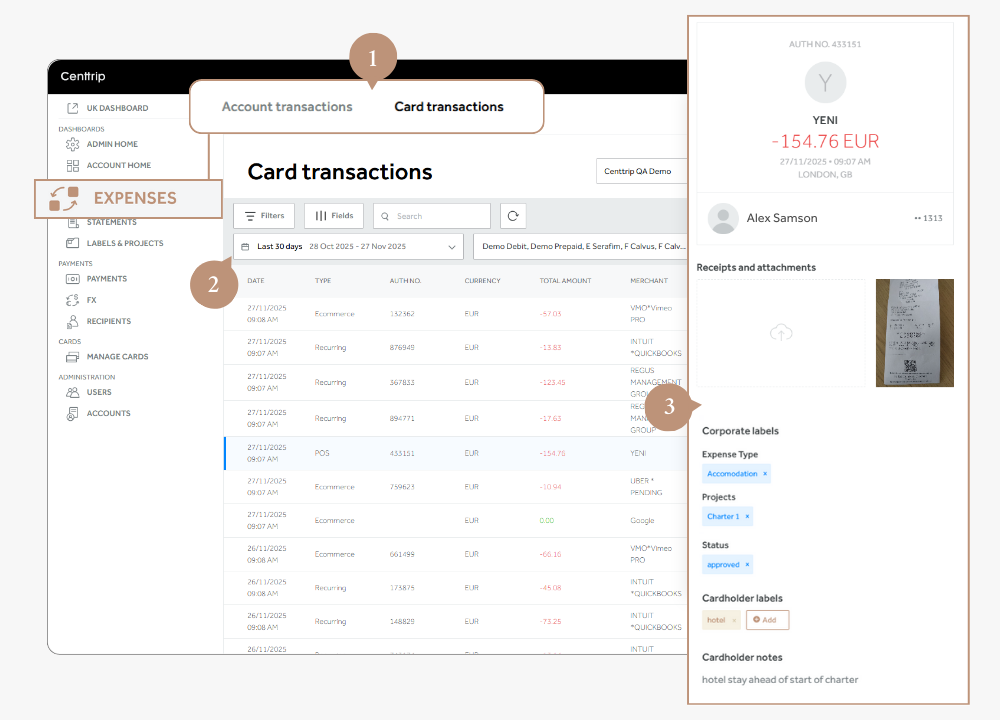
Visit Expenses from the left-hand menu and use the tabs at the top of the screen to switch between account and card transactions.
-
Adjust filters, fields, and date ranges to refine your data as needed.
-
Click on a transaction to open the side panel and view or manage:
- Receipts and attachments – view or download the receipt, or upload one yourself
- Corporate labels – check which labels have been added and amend as needed
- Project label – ensure the relevant project label has been auto-assigned
- Cardholder labels and notes (cardholder transactions only) – review any additional information about the expense
-
Close the side panel and click XLS or PDF to export.
- XLS is good for analysis, editing, or import.
- PDF provides professional statements.

TIP - Use the 'Receipt' filter and select 'With receipt' to locate expenses that are ready to reconcile.