How do I get started with corporate labels?
What are Corporate Labels?
Corporate Labels are custom tags created by your organisation to support and streamline your accounting processes. You can set up as many label groups as needed and link each label to additional values, such as accounting or tax codes, for effortless mapping.
Once created, Corporate Labels can be applied to card and cash transactions instantly—either by cardholders in the Centtrip app or by Administrators via the Expenses dashboard.
If you need labels and accounting codes to be automatically assigned to transactions made on specific cards within certain date ranges, use our Projects feature instead.
How do I set them up?
-
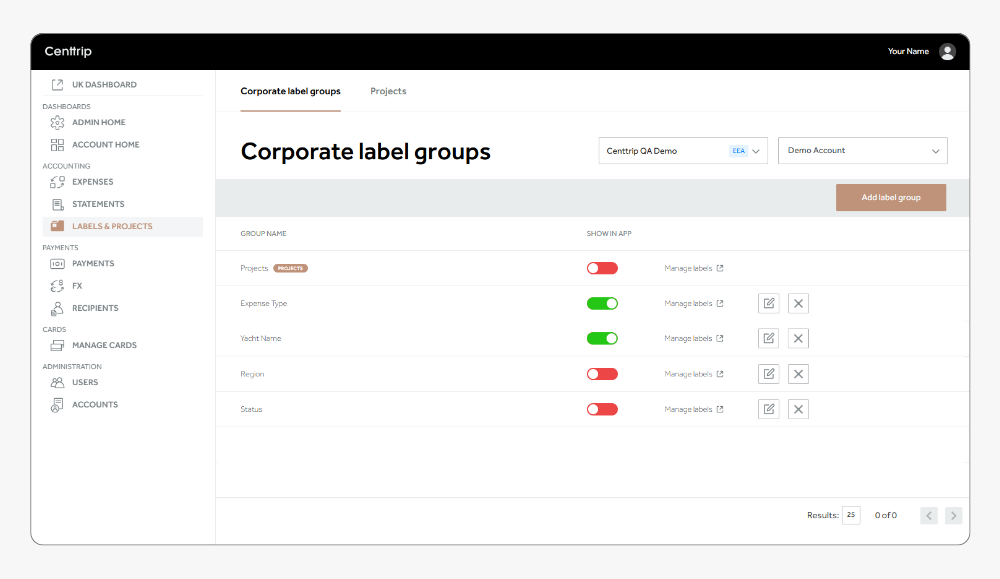
Go to Labels & Projects from the left-hand menu, then select: Add label group.
-
Enter a name for the first group (anything that supports your accounting processes) — e.g. Expense Type. Then, click Add.
-
Select Manage labels, and press the Add corporate label button.
-
Enter the name of your first label within the group (for example, under Expense Type, you might start with Travel). Then add the associated accounting or tax code.
-
Click Add. Repeat this process to create remaining labels (e.g., accommodation, sustenance, client entertainment).
On the main 'Corporate label groups' page, use the Show in app toggle to decide whether cardholders can add these labels to their expenses within the app. If turned off, only administrators can add them from the Expenses page.